Task 1 - Obtain a 2-Legged Access Token
Expected task outcome
By the end of this task, you will know how to use Postman to obtain a two-legged access token.
Step 1 - Update Postman Variables
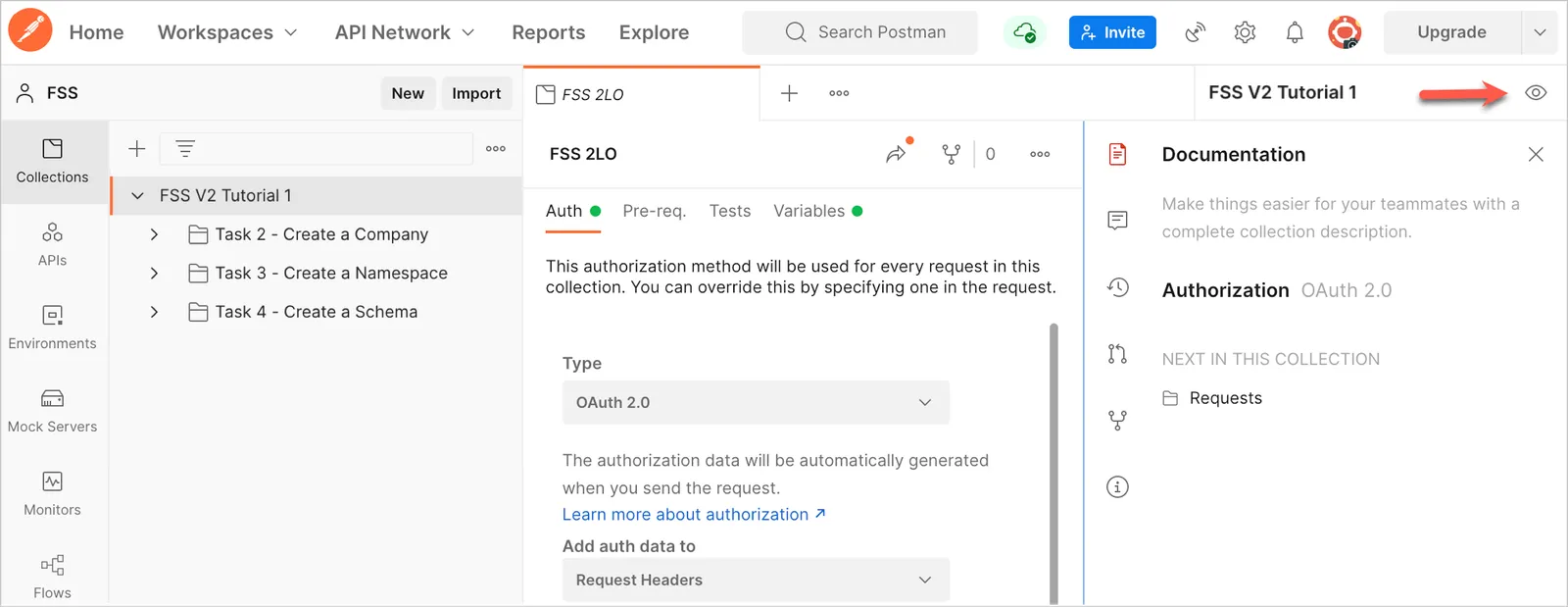
- In Postman, click the Environment Quick Look button. A list of Environment Variables display.
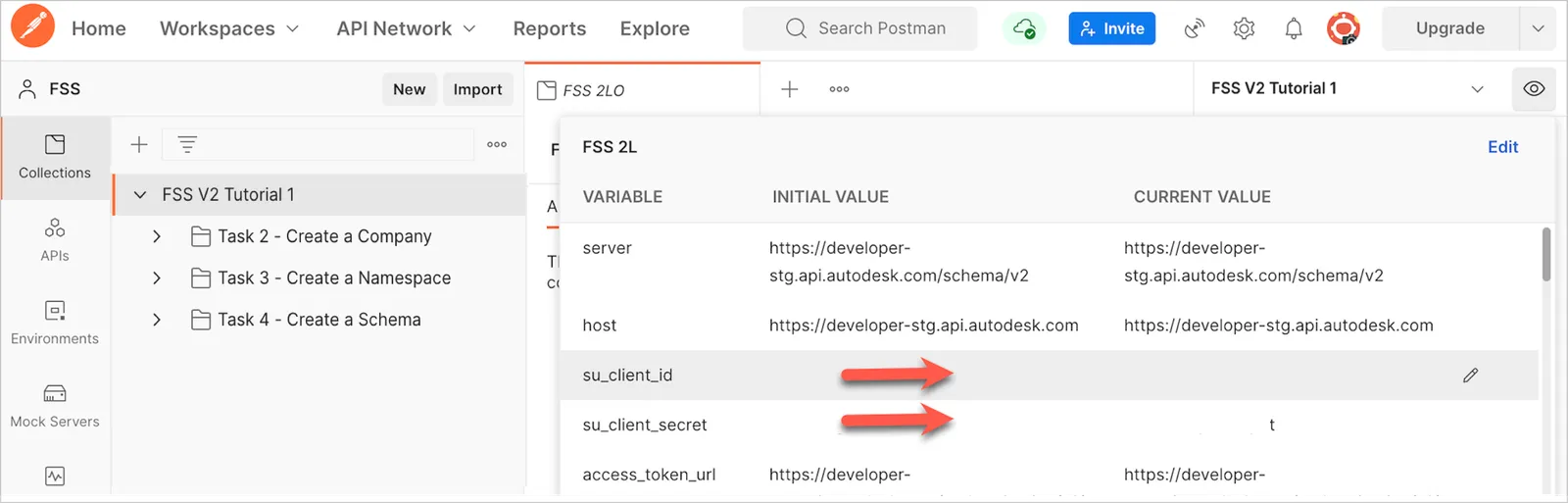
- In the Environment Variables list, set the su_client_id and su_client_secret environment variables to the Client ID and Client Secret you noted down earlier.
Step 2 - Obtain Access Token
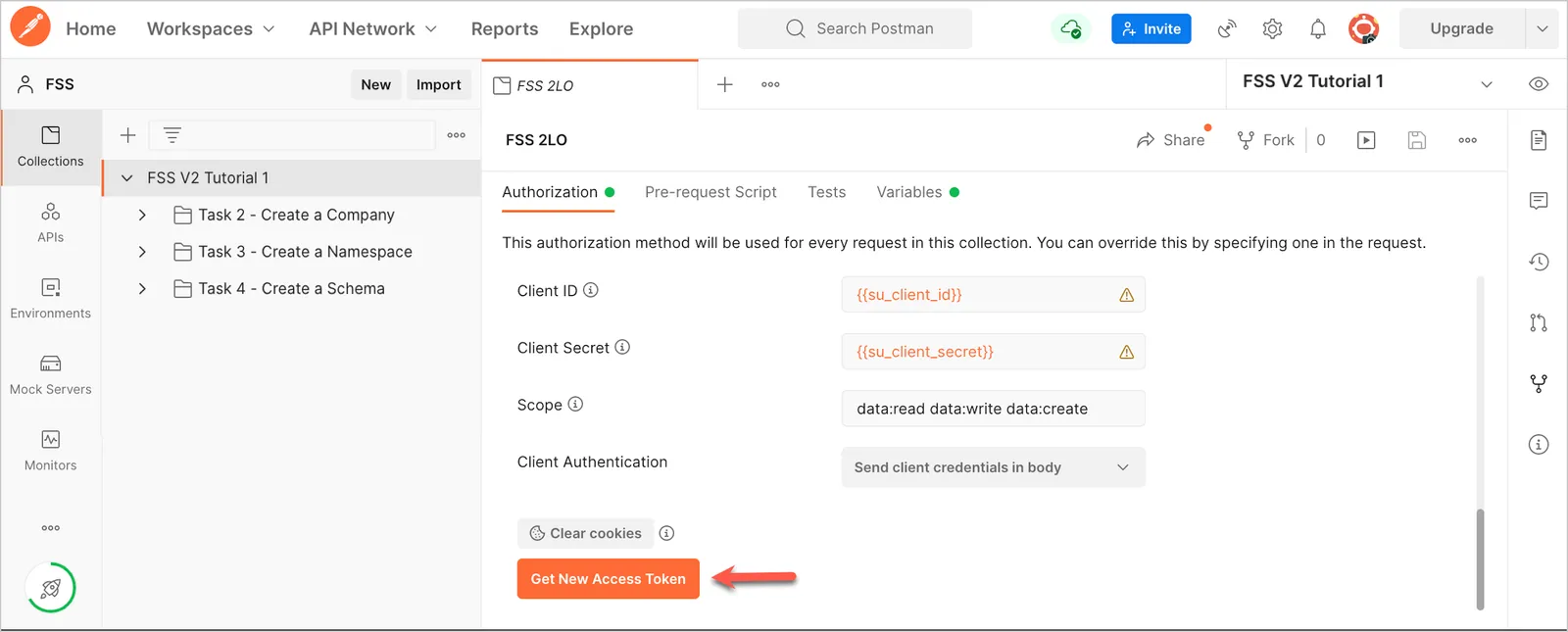
- In Postman, on the Sidebar, select the Postman Collection FSS V2 Tutorial 1.
- In the centre area, click the Authorization tab. The Authorization tab displays.
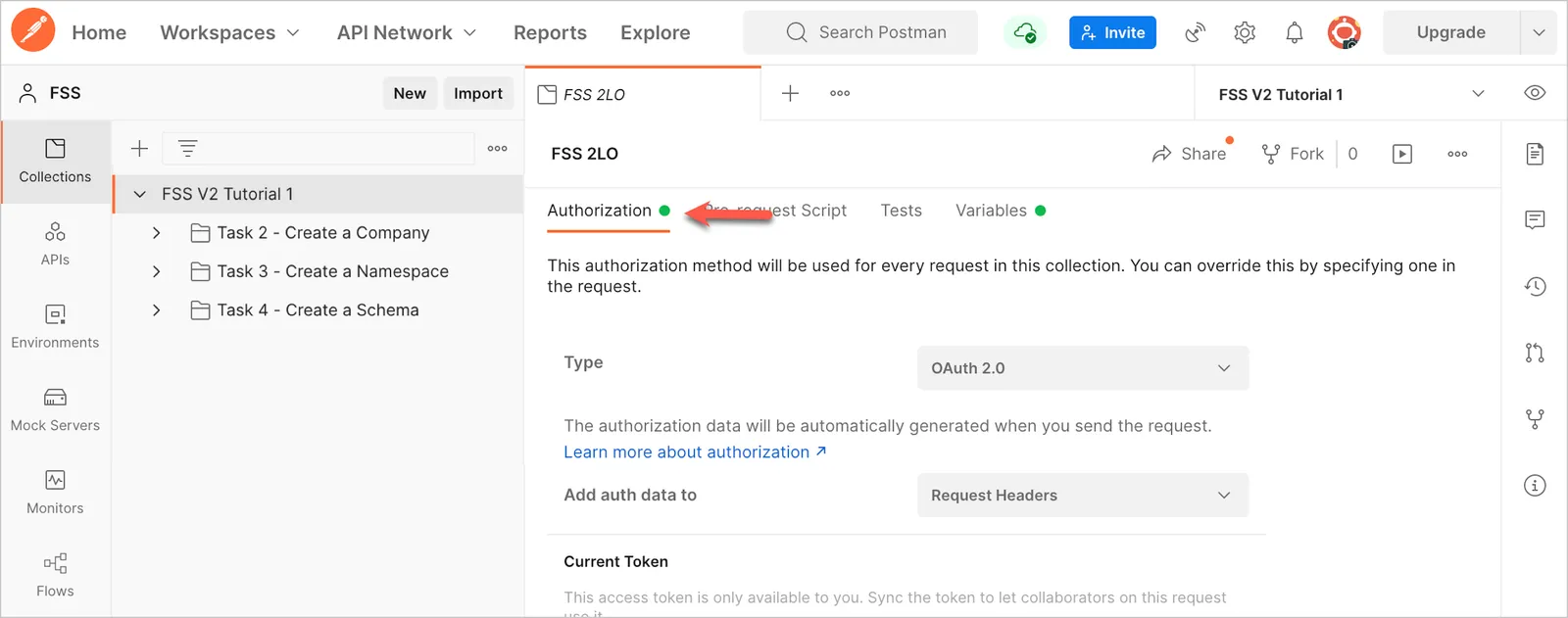
- In the Authorization tab, scroll down to the Configure New Token section and click Get New Access Token.
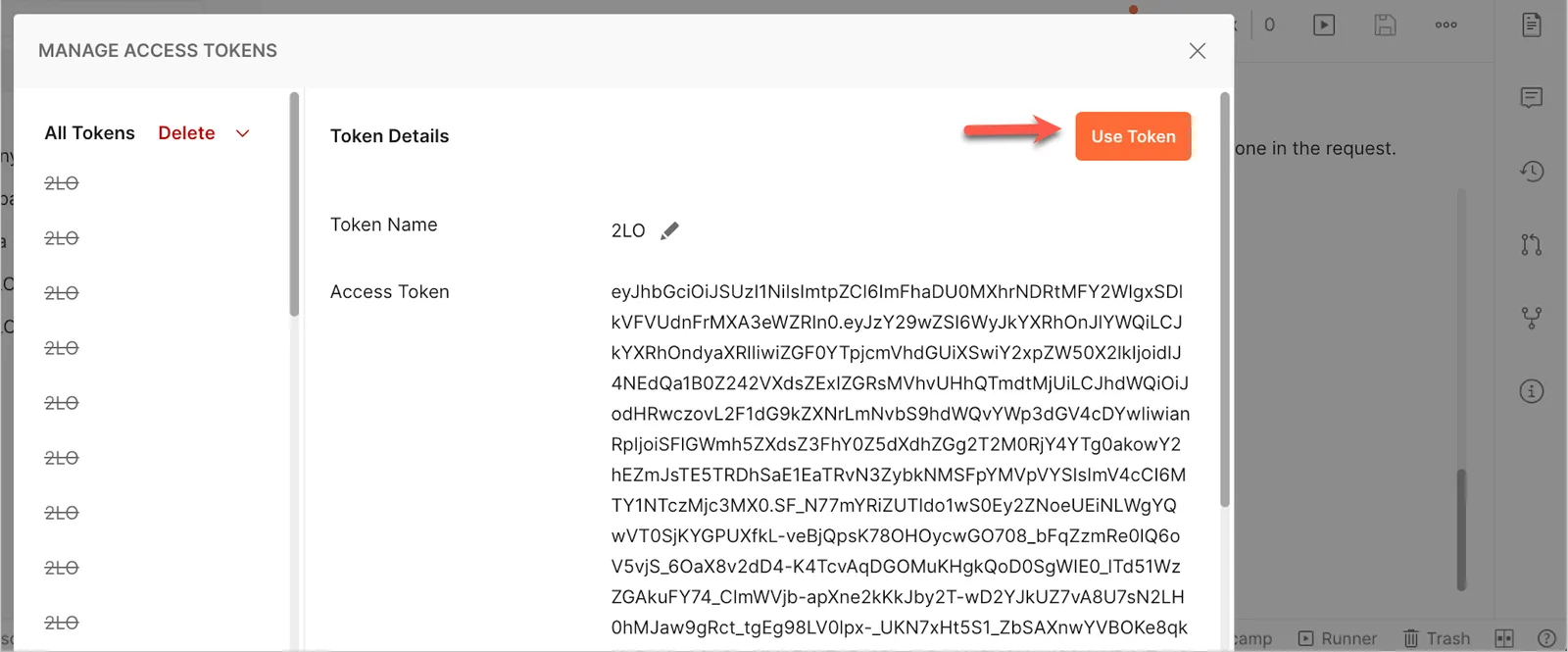
- In the Manage Access Tokens screen that is displayed after you successfully authorize, click Use Token.